Blog/Guides
How to save places from YouTube travel videos
Turn a travel vlog into a structured list of stops on your map - save the video, verify suggestions, schedule by day.
·8 min read
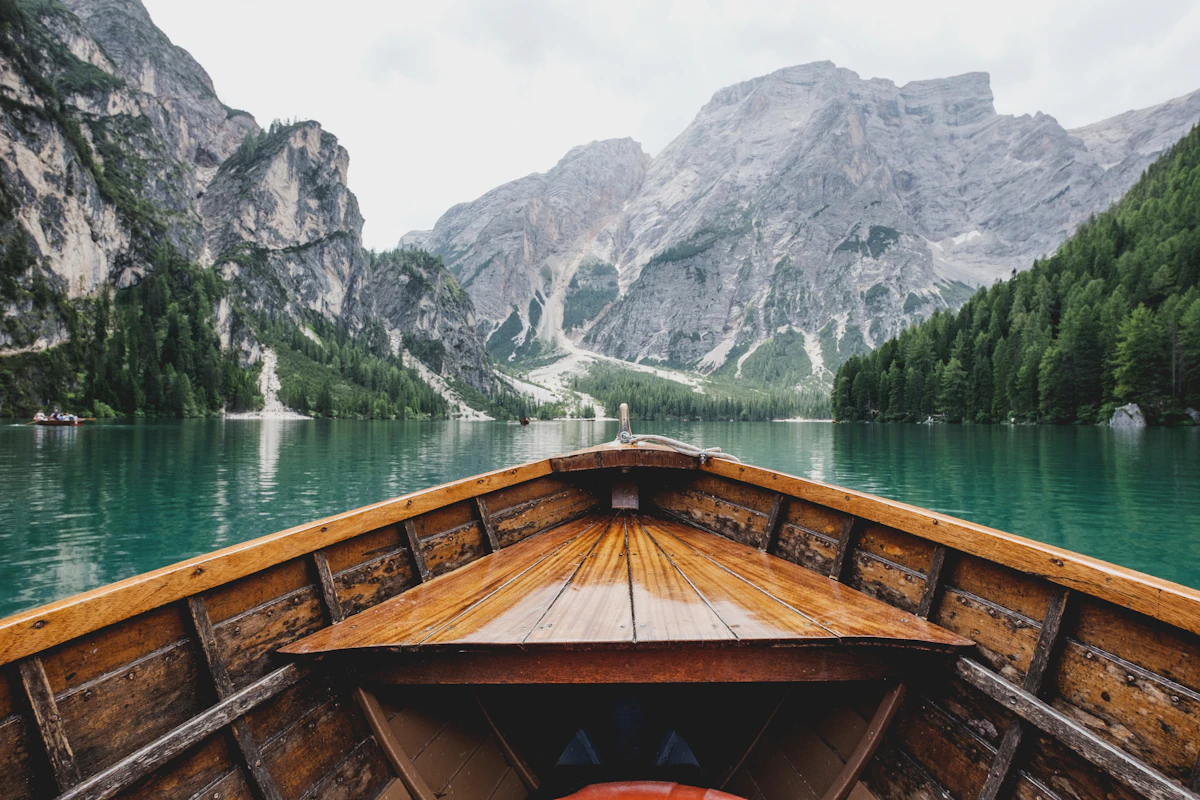
YouTube is where many trips start: a creator walks through a city, names cafes and viewpoints, and you want to follow the same route. The hard part is capturing every stop without pausing every thirty seconds. Roamset is designed for that workflow.
1. Save the video with the extension
On a YouTube travel video, open the Roamset extension, choose your trip, and save. The video becomes a trip source linked to that itinerary.
2. Review suggested places
In the planner, open the Places panel and run extraction if needed. Roamset lists candidate stops mentioned or shown in the content. Verify each place you actually want - verification anchors the stop to a real location on the map.
3. Schedule on your days
Drag verified places onto Day 1, Day 2, and so on. The map draws your sequence and can refresh travel times between stops. You can still add places manually from search if the video skipped something you need.
When this works best
- City guides and “day in my life” vlogs with named neighborhoods
- Food tours where the creator lists specific venues
- Multi-day trips where you want to mirror pacing, not every second of B-roll
Always double-check hours and closures before you go. Video publish dates may be months old.
Plan your next video-inspired trip
Start a trip, save a video, and verify your first stops today.
Create a trip